
Overview
This guide explains how to configure an alarm panel to send Contact-ID or SIA alarm messages to a Milestone XProtect system using the ORBNET Event Gateway.
It covers the main prerequisites, alarm panel configuration, XProtect server configuration, firewall requirements, Event Gateway receiver setup, licensing, and verification steps.
The general flow is:
Alarm Panel → Contact-ID or SIA message → ORBNET Event Gateway → Milestone XProtect Event Server
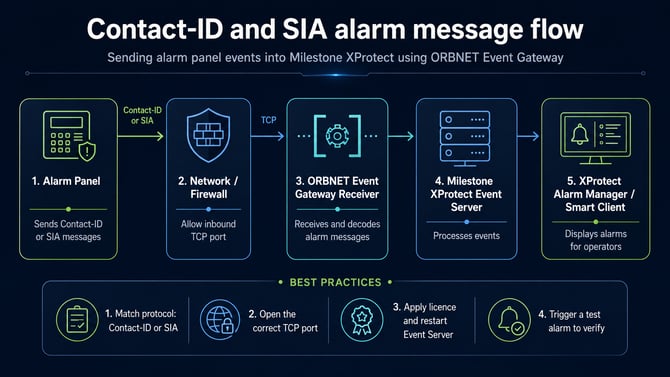
Example alarm message flow showing Contact-ID or SIA messages being sent from an alarm panel into Milestone XProtect using ORBNET Event Gateway.
Prerequisites
Before starting, make sure you have the following information and access available.
| Requirement | Details |
|---|---|
| Milestone XProtect access | Administrative access to the XProtect server, including permission to install software and restart services. |
| Alarm panel access | Network access to the alarm panel and permission to configure alarm message sending. |
| Alarm panel IP address | The IP address of the alarm panel sending Contact-ID or SIA messages. |
| Account number / account ID | The alarm panel account number, sometimes referred to as the account ID. |
| Alarm point list | A list of alarm points, including names, types, zones, partitions, and any relevant identifiers. |
| Firewall access | Access to create or request inbound firewall rules on the XProtect server. |
| Event Gateway installer | The ORBNET Event Gateway installer downloaded and ready for installation. |
| Event Gateway licence | A valid Event Gateway licence, or the included 30-day trial licence for initial testing. |
| Optional floor plan | A PNG or JPEG floor plan image showing the area covered by the alarm panel. This can be useful when mapping alarms to locations in XProtect. |
The setup process normally follows the workflow below. Each step is explained in more detail in the sections that follow.
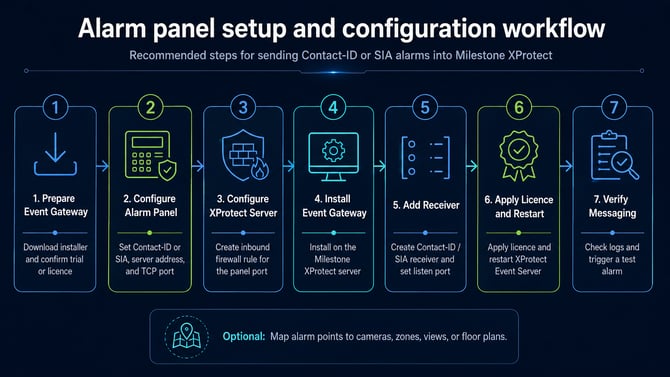
Recommended workflow for configuring an alarm panel to send Contact-ID or SIA messages into Milestone XProtect using ORBNET Event Gateway.
Step 1: Prepare the ORBNET Event Gateway
Before configuring the alarm panel, download the ORBNET Event Gateway installer.
The installer is available from the ORBNET Systems website:
Event Gateway downloads:
https://orbnetsys.com/EventGateway#downloads
You may need to create an account before downloading the installer.
The ORBNET Event Gateway includes a 30-day trial licence, which can be used for initial setup, testing, and validation.
Step 2: Configure the alarm panel
On the alarm panel, locate the settings used for alarm message sending or alarm receiver configuration.
Configure the panel to send messages to the Milestone XProtect server where the ORBNET Event Gateway receiver will be running.
| Setting | Required value |
|---|---|
| Message protocol | Select Contact-ID or SIA, depending on what the panel supports and what you intend to receive. |
| Receiver address | Enter the IP address or hostname of the XProtect server running the Event Gateway receiver. |
| Receiver port | Enter the TCP port that will be used for Contact-ID or SIA message delivery. |
| Account number / account ID | Record the account number configured on the panel. |
| Alarm points | Record the alarm point names, types, zones, partitions, and identifiers. |
Make a note of the TCP port used by the panel. You will need the same port when configuring the firewall and the Event Gateway receiver.
You should record the following information before continuing:
| Information | Notes |
|---|---|
| Panel IP address | Used for firewall rules and troubleshooting. |
| Protocol | Contact-ID or SIA. |
| TCP port | The port used by the panel to send messages. |
| Account number / account ID | Used to identify messages from the panel. |
| Alarm point list | Used for mapping alarm messages into XProtect. |
| Floor plan image | Optional, but useful for visual alarm mapping. |
Step 3: Configure the Milestone XProtect server
On the server hosting the Milestone XProtect Event Server, confirm which TCP port will be used to receive alarm messages.
This port must match the receiver port configured on the alarm panel.
Create the firewall rule
Create an inbound firewall rule on the XProtect server to allow alarm messages from the alarm panel.
| Firewall setting | Recommended configuration |
|---|---|
| Direction | Inbound |
| Protocol | TCP |
| Local port | The port configured on the alarm panel and Event Gateway receiver. |
| Remote address | Restrict to the alarm panel IP address or alarm panel subnet where possible. |
| Action | Allow |
Where possible, restrict the firewall rule to the alarm panel’s IP address rather than allowing traffic from any source.
This keeps the configuration tighter and avoids leaving unnecessary ports exposed. Tiny firewall dragons, neatly caged.
Step 4: Install the ORBNET Event Gateway
Run the ORBNET Event Gateway installer on the server hosting the Milestone XProtect Event Server.
After installation, you may need to restart the Milestone XProtect Event Server service before the new Event Gateway components are fully active.
Make sure you either have permission to restart services or coordinate this with the system administrator.
Step 5: Add the alarm panel receiver in ORBNET Event Gateway
Open the ORBNET Event Gateway management interface.
Add a new Event Gateway Receiver for the alarm panel.
Configure the receiver using the details recorded from the alarm panel.
| Receiver setting | Configuration |
|---|---|
| Receiver type | Contact-ID / SIA receiver |
| Listen port | The TCP port configured on the alarm panel |
| Allowed source IPs | The alarm panel IP address or subnet, where supported |
| Protocol settings | Match the alarm panel protocol, either Contact-ID or SIA |
| Timeouts and security settings | Configure according to the site requirements and security policy |
Save the receiver configuration once complete.
Step 6: Apply licensing and restart services
In the Event Gateway interface, open the Licensing section.
Apply the licence for the Event Gateway instance or the alarm panel, depending on the licence type supplied.
After applying the licence:
- Save the licence changes.
- Restart the Milestone XProtect Event Server service.
- Confirm the Event Gateway receiver is active and listening on the configured TCP port.
Restarting the Event Server ensures the receiver is loaded and ready to receive alarm messages.
Step 7: Verify connectivity and alarm messages
Once the receiver is configured and the Event Server has been restarted, verify that messages are arriving from the alarm panel.
Check the receiver message log
In the Event Gateway receiver page, monitor incoming messages.
Confirm that:
| Check | Expected result |
|---|---|
| Messages arrive from the panel | Contact-ID or SIA messages appear in the receiver log. |
| Account number is correct | The message contains the expected account number or account ID. |
| Point identifiers are visible | Alarm point or zone identifiers appear as expected. |
| Protocol is correct | Messages are decoded correctly as Contact-ID or SIA. |
Trigger a test alarm
If possible, trigger a test alarm from the alarm panel.
Confirm that:
- The alarm panel sends the message.
- The message arrives in Event Gateway.
- The message is decoded correctly.
- The alarm can be mapped or used within XProtect as required.
Optional: Map alarm points to XProtect visuals
After messages are being received correctly, you can use the alarm point list and optional floor plan image to improve alarm handling in XProtect.
Alarm points can be mapped to:
| XProtect item | Example use |
|---|---|
| Cameras | Link an alarm point to nearby cameras for quick operator response. |
| Zones | Group alarm points by area, floor, building, or partition. |
| Views | Open relevant Smart Client views when an alarm is received. |
| Maps or floor plans | Display alarm locations visually for faster situational awareness. |
| Alarm Manager entries | Present decoded alarm information to operators in a structured way. |
Where possible, include clear zone names, camera references, and alarm descriptions. This helps operators understand what has happened without needing to decode raw alarm point information.
Troubleshooting
If messages are not arriving or are not decoding correctly, use the flow below to check the most common causes before moving into deeper troubleshooting.
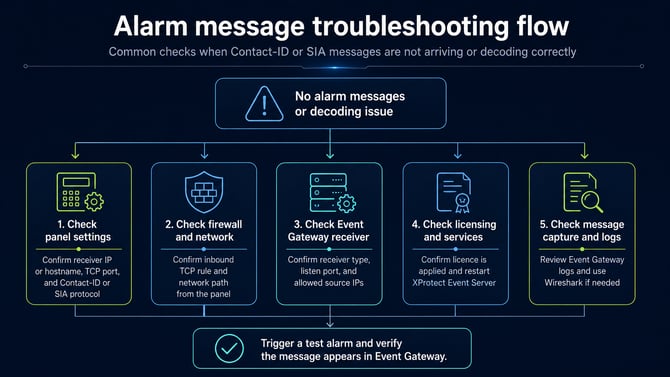
Basic troubleshooting flow for Contact-ID and SIA alarm messages that are not arriving or not decoding correctly in Event Gateway.
Use the table below if alarm messages are not being received or decoded correctly.
| Issue | Checks |
|---|---|
| No messages arrive in Event Gateway | Confirm the alarm panel receiver IP address and TCP port are correct. Check that the panel is sending messages. Verify the firewall rule allows inbound TCP traffic from the panel. |
| Firewall appears to block traffic | Confirm the inbound rule is enabled, uses the correct protocol and port, and allows traffic from the panel IP address. |
| Receiver is not listening | Confirm the Event Gateway receiver is configured and saved. Restart the XProtect Event Server service. Check Event Server logs. |
| Messages arrive but do not decode correctly | Confirm the receiver protocol matches the panel protocol, either Contact-ID or SIA. |
| Wrong account number appears | Check the account number configured in the alarm panel. Confirm the expected account ID is being used for mapping. |
| Alarm points do not match expected zones | Review the panel’s alarm point, zone, and partition configuration. Compare this against the mapping in Event Gateway or XProtect. |
| Licence issues occur | Confirm the Event Gateway licence has been applied correctly and that the Event Server has been restarted after licensing. |
Advanced troubleshooting
If messages still do not arrive, use a packet capture tool such as Wireshark on the XProtect server.
Capture traffic on the configured TCP port and check whether messages from the alarm panel reach the server.
If no packets arrive, the issue is likely to be network routing, firewall configuration, or alarm panel sending configuration.
If packets arrive but no messages appear in Event Gateway, check the Event Gateway receiver configuration, protocol selection, licensing, and Event Server logs.
For temporary testing, you may allow inbound TCP traffic to the configured port from the alarm panel subnet. Once testing is complete, tighten the rule back to the specific panel IP address where possible.
Summary checklist
| Task | Complete |
|---|---|
| Event Gateway installer downloaded | ☐ |
| Event Gateway licence available or trial licence confirmed | ☐ |
| Alarm panel IP address recorded | ☐ |
| Alarm panel account number / account ID recorded | ☐ |
| Contact-ID or SIA protocol confirmed | ☐ |
| Alarm point list prepared, including names, types, zones, and partitions | ☐ |
| Optional floor plan image gathered | ☐ |
| Alarm panel configured to send messages to the XProtect server IP or hostname | ☐ |
| TCP port recorded | ☐ |
| Inbound firewall rule created on the XProtect server | ☐ |
| ORBNET Event Gateway installed | ☐ |
| Event Gateway receiver added and configured | ☐ |
| Licence applied | ☐ |
| XProtect Event Server restarted | ☐ |
| Incoming messages verified in Event Gateway | ☐ |
| Test alarm successfully received | ☐ |
| Alarm points mapped to cameras, zones, views, or floor plans where required | ☐ |
Summary
The ORBNET Event Gateway allows alarm panels to send Contact-ID or SIA messages into Milestone XProtect.
The key steps are to configure the alarm panel receiver settings, open the required firewall port, install and configure ORBNET Event Gateway, apply licensing, restart the XProtect Event Server, and verify that messages arrive correctly.
Once the messages are being received, alarm points can be mapped to cameras, zones, views, or floor plans to provide clearer operator workflows inside XProtect.