
The ORB Driver can use a local video file as a video source. This is useful for testing, demonstrations, training systems, or situations where a repeatable video source is required inside Milestone XProtect.
This guide explains how to configure an MP4 or M4V file as an ORB Driver video channel.
Before following this guide, first set up an ORB Driver video channel using the ORB Driver Quick Start Guide.
MP4 or M4V file playback flow
MP4 or M4V file playback flow
.svg)
How a local MP4 or M4V file is read by the Milestone Recording Server and presented through the ORB Driver video channel.
Suggested alt text:
Diagram showing a local MP4 or M4V file on the Recording Server being read by the Milestone Recording Server service and displayed through an ORB Driver video channel in XProtect.
Before you begin
Before configuring the video channel, make sure the following is in place:
| Requirement | Details |
|---|---|
| ORB Driver video channel | An ORB Driver video channel must already be created in XProtect. |
| Video file | The video file must be available on the XProtect Recording Server. |
| Supported file type | The video file can be MP4 or M4V. |
| File permissions | The Milestone Recording Server service account must have permission to read the video file. |
| XProtect access | You need access to XProtect Management Client to update the ORB Driver video channel settings. |
Step 1: Create a folder for the video file
On the XProtect Recording Server, create a folder to store the video file.
For example:
C:\video
Copy the required MP4 or M4V file into this folder.
Example file path:
C:\video\Orbnet-Teams-Background_480p5fps.m4v
You can use a different folder or file name, but the full path must be entered correctly in the ORB Driver video channel settings.
Step 2: Check the Recording Server service account and file permissions
The video file must be accessible to the account running the Milestone Recording Server service.
In many XProtect installations, the Recording Server service runs as Network Service. However, this can be customised, so you should confirm the actual service account before setting file permissions.
Check the Recording Server service account
On the XProtect Recording Server:
- Open Services by running:
services.msc
- Locate the service named:
Milestone Recording Server
- Open the service properties.
- Check the Log On tab.
- Note which account the service is using.
This is the account that needs permission to read the video file.
Milestone Recording Server service account
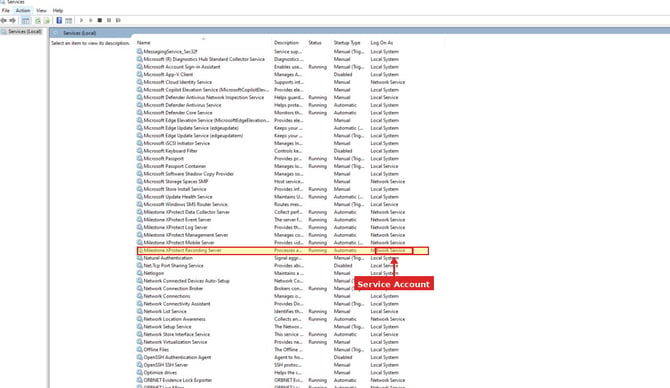
Check the Log On account for the Milestone Recording Server service.
Set permissions on the video folder and file
The Recording Server service account must have permission to read both the folder and the video file.
| Item | Required access |
|---|---|
| Video folder | Read and execute |
| Video file | Read |
For a local file such as:
C:\video\example.mp4
grant read access to the account shown in the Log On tab of the Milestone Recording Server service.
If the service is running as Network Service, grant access to:
NETWORK SERVICE
If the service is running as a custom Windows or domain account, grant access to that specific account instead.
Setting folder permissions
On the Recording Server:
- Right-click the folder containing the video file.
- Select Properties.
- Open the Security tab.
- Select Edit.
- Add the required service account.
- Grant Read & execute and Read permissions.
- Apply the changes.
Important note for network shares
For the simplest setup, store the video file locally on the Recording Server.
If the video file is stored on a network share, both the share permissions and NTFS permissions must allow access from the Recording Server service account.
If the Milestone Recording Server service runs as Network Service, access to remote network resources is normally made using the Recording Server computer account.
For example:
DOMAIN\RecordingServerName$
In this case, grant the Recording Server computer account permission to read the file from the network share.
If the Recording Server service runs as a custom domain account, grant the network share and NTFS permissions to that custom account instead.
Step 3: Open the ORB Driver video channel
In XProtect Management Client, locate the ORB Driver video channel you want to configure.
Select the relevant ORB Driver camera or video channel.
Open the channel settings and locate the stream property named:
URI or MP4 file path
ORB Driver video channel selected in XProtect Management Client
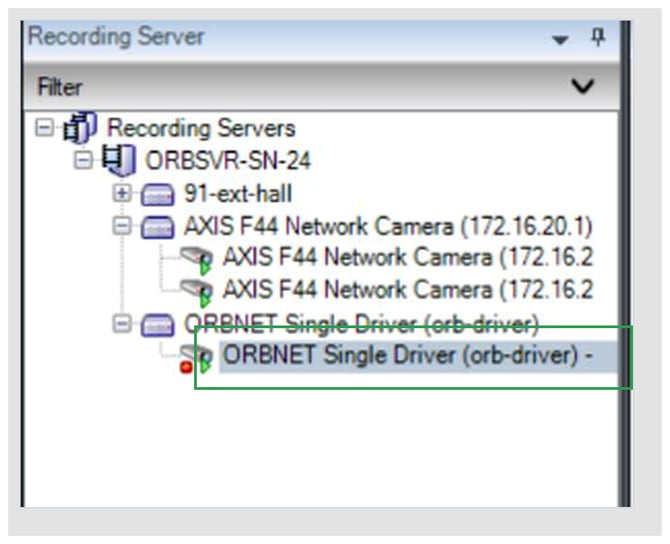 ORB Driver video channel selected in XProtect Management Client.
Step 4: Enter the MP4 or M4V file path
In the URI or MP4 file path field, enter the full path to the video file.
Example:
C:\video\Orbnet-Teams-Background_480p5fps.m4v
The value should include:
| Part | Example |
|---|---|
| Drive letter | C: |
| Folder path | \video\ |
| File name | Orbnet-Teams-Background_480p5fps |
| File extension | .m4v |
Supported file extensions include:
| File type | Extension |
|---|---|
| MP4 video | .mp4 |
| M4V video | .m4v |
URI or MP4 file path field
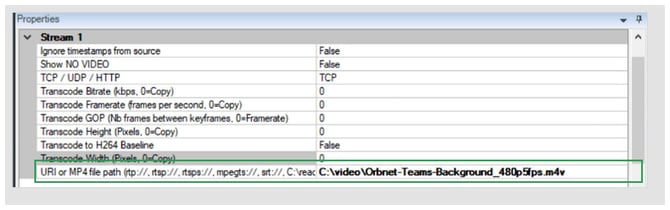
The URI or MP4 file path field configured with a local MP4 or M4V file path.
Step 5: Save the configuration
After entering the file path, click Save in the XProtect Management Client toolbar.
The ORB Driver video channel should now use the selected video file as its source.
Save the configuration
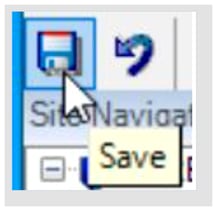
Save the configuration after updating the ORB Driver video channel.
Suggested alt text:
Screenshot of the XProtect Management Client toolbar showing the Save button.
Step 6: Verify video playback
After saving, check the video preview in XProtect Management Client or open the camera in XProtect Smart Client.
Confirm that:
| Check | Expected result |
|---|---|
| Video preview appears | The selected MP4 or M4V file is displayed as the video source. |
| File path is correct | The configured path matches the actual location of the file. |
| File extension is correct | The file uses .mp4 or .m4v. |
| Permissions are correct | The Milestone Recording Server service account can read the file. |
| Recording Server is running | The Milestone Recording Server service is active. |
Successful video preview
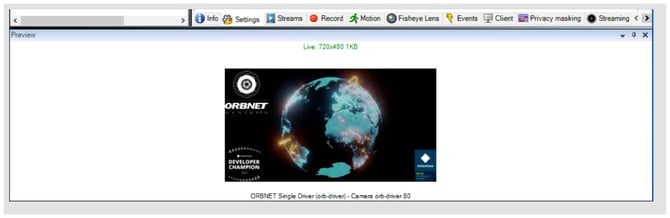 Successful video preview from an MP4 or M4V file source.
Troubleshooting
Use the table below if the video does not appear.
| Issue | Checks |
|---|---|
| No video is displayed | Confirm the file path is correct and includes the file extension. |
| File cannot be opened | Confirm the video file exists on the Recording Server. |
| Permission issue suspected | Confirm the Milestone Recording Server service account has read access to the folder and file. |
| Using a network share | Confirm both share permissions and NTFS permissions allow access from the Recording Server service account or computer account. |
| Wrong file type | Confirm the file is MP4 or M4V. |
| Changes not applied | Save the configuration and restart the Milestone Recording Server service if required. |
File permission troubleshooting flow
Insert diagram here: File permission troubleshooting flow
Suggested diagram title:
File permission troubleshooting flow
Suggested diagram flow:
No video displayed → Is the file path correct? → Does the file exist on the Recording Server? → Which account runs Milestone Recording Server? → Does that account have read access? → Test playback again
Suggested caption:
Basic troubleshooting flow for file path and permission issues when using an MP4 or M4V file as a video source.
Suggested alt text:
Troubleshooting diagram showing checks for file path, file location, Milestone Recording Server service account, folder permissions, and video playback.
Summary checklist
| Task | Complete |
|---|---|
| ORB Driver video channel created | ☐ |
| MP4 or M4V file copied to the Recording Server | ☐ |
| Full file path recorded | ☐ |
Milestone Recording Server service account checked in services.msc |
☐ |
| Recording Server service account has read access to the folder | ☐ |
| Recording Server service account has read access to the file | ☐ |
| ORB Driver video channel selected in XProtect Management Client | ☐ |
| URI or MP4 file path updated with the full file path | ☐ |
| Configuration saved | ☐ |
| Video playback verified | ☐ |
Summary
To use an MP4 or M4V file as an ORB Driver video channel, copy the video file to the XProtect Recording Server, enter the full file path in the URI or MP4 file path setting, and save the channel configuration.
The most common issues are an incorrect file path or missing file permissions. Make sure the video file can be read by the account running the Milestone Recording Server service. This is commonly Network Service, but it can be customised and should be confirmed in services.msc.