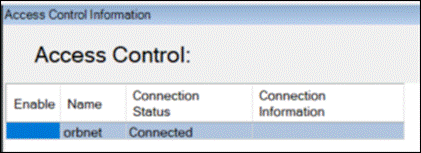
For Net2 to maintain high levels of cyber security and as such, there is a change to the certificate management within the software. The certificate manager tab has been removed from the http://localhost:8080 page and we will no longer automatically install an SSL certificate to the trusted root folder. All RESTful API integrations with Net2 will be required to update their SSL certificates from Net2 v6.7 SR1. New connections will be made via https://localhost:8443.
Integrations will only work using HTTPS, as HTTP will cease to operate from Net2 v6.7 SR1.
Please see steps from Paxton to enable the secure API connection.
APN-1206 – SSL/TLS Certificate implementation for new integrations installs
APN-1206.pdf (paxton-access.com)
-
After enabling the API, we recommend to reboot the Paxton Net2 server, because this makes changes to how their services are started.
-
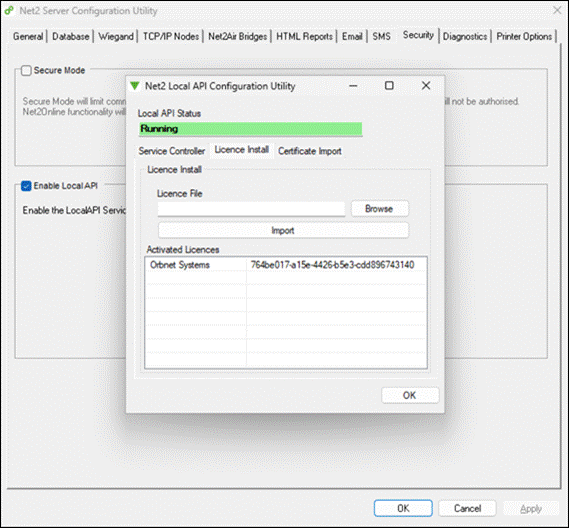
From the Net2 Server Config Utility > Security
-
The ORBNET Plugin should already show in the list as it was already installed. If not copy from your Milestone server.
-
C:\Program Files\Milestone\MIPPlugins\ORBNET\Paxton Access( 764be017-a15e-4426-b5e3-cdd896743140.lic)
-
The Paxton API uses port 8443 not port 8080 as stated in the Paxton document.
-
https://localhost:8443/
-
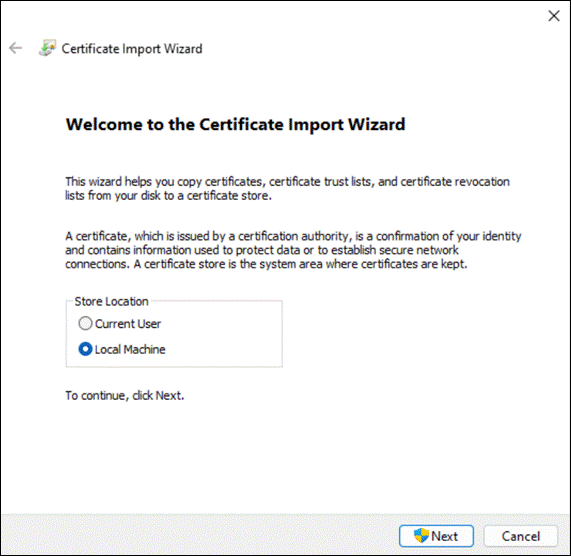
Download the self-signed certificate, copy this to your Milestone server and install. I recommend to select;
-
Local Machine [Next]
-
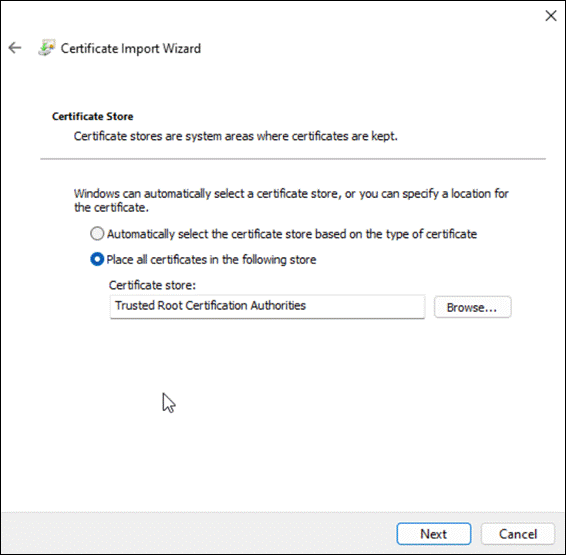
Place all certificates in the following store [Browse]
-
Trusted Root Certification Authorities [Next]
-
[Finish]
-
You should now be able to access the Paxton Net2 API webpage without an SSL error. This will only be for the hostname of your Paxton Net 2 server, this will not work for the IP address.
-
Update the Paxton Net2 integration settings for XProtect.
-
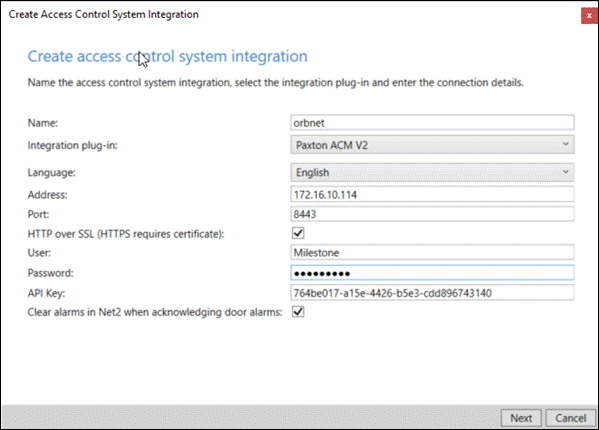
If adding new;
-
Port 8443
-
HTTP over SSL (Tick)
-
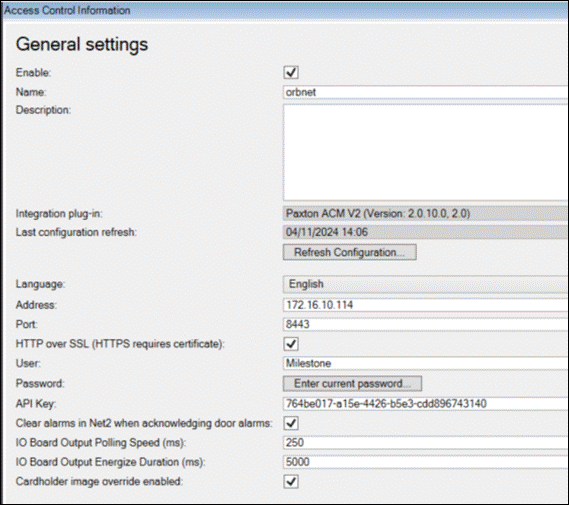
Updating a not connected plugin;
-
Port 8443
-
HTTP over SSL (Tick)
-
Re-enter the password
-
[SAVE]
-
[Refresh Configuration]
-
Will now show connected.