
The XProtect Smart Client includes a Paxton Special Functions panel that can be used to add visitors to the system.
This feature allows an operator to scan a visitor token, capture a photo, and add the visitor details directly from within the Smart Client workflow.
Smart Client visitor workflow
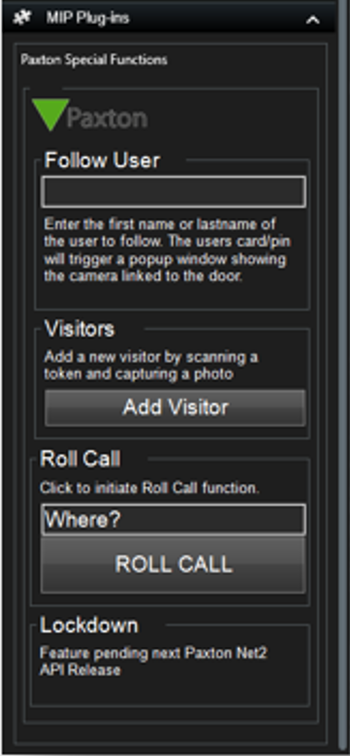 Paxton Special Functions panel in XProtect Smart Client, including the Add Visitor option.
Adding a visitor
To add a visitor, use the Add Visitor option in the Paxton Special Functions panel.
The visitor token must be scanned using a supported Paxton desktop reader. The reader outputs the token ID as text, in a similar way to a USB barcode scanner. This allows the token number to be entered directly into the visitor workflow.
Important reader requirement
When adding a token, the system can only receive the token number from a desktop reader that provides keyboard output over USB.
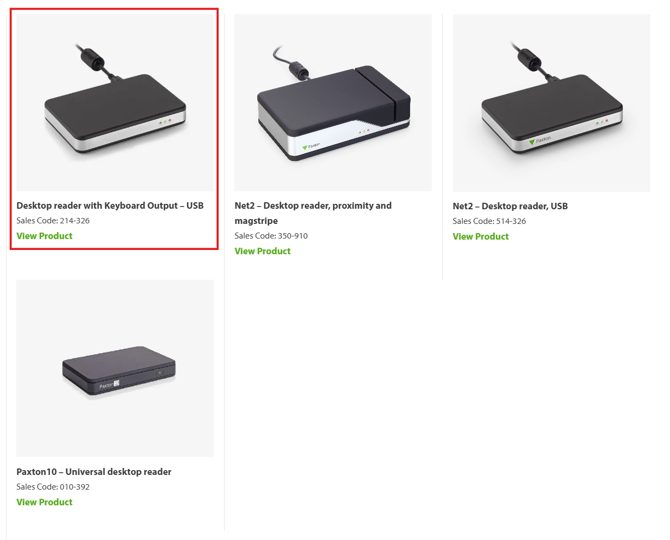
Paxton Desktop reader with Keyboard Output – USB, used to read visitor token IDs into the Smart Client workflow.
Reader compatibility
| Reader type | Supported for adding visitor tokens | Notes |
|---|---|---|
| Desktop reader with Keyboard Output – USB | Yes | Outputs the token ID as text, allowing it to be captured by the visitor workflow. |
| Other Paxton desktop readers | Not confirmed | These may not output the token ID in the required keyboard format. |
| Standard access control readers | No | These are intended for door and access control use and do not provide the required Smart Client token entry workflow. |
Summary
To add visitors from XProtect Smart Client, use the Paxton Special Functions panel and scan the visitor token using the Paxton Desktop reader with Keyboard Output – USB.
Other reader models may not provide the token number in the required format and should not be assumed to work unless they have been tested and confirmed.